Connect Twitter/X: Step-by-Step Guide

Connecting your X (formerly Twitter) account to Sofia Creative enables you to publish tweets and threads directly from your workspace. This integration uses the modern OAuth 2.0 protocol, ensuring high security and a seamless authorization experience. You will need to create a project and app in the X Developer Portal to get started.
X Developer Account Required
You must have an approved X Developer account. The Free or Basic tiers are sufficient for standard automated posting via OAuth 2.0.
Step 1: Create a Project and App
X uses a "Project" structure to organize your apps. Each project can contain one or more apps that share usage limits.
- Log in to the X Developer Portal.
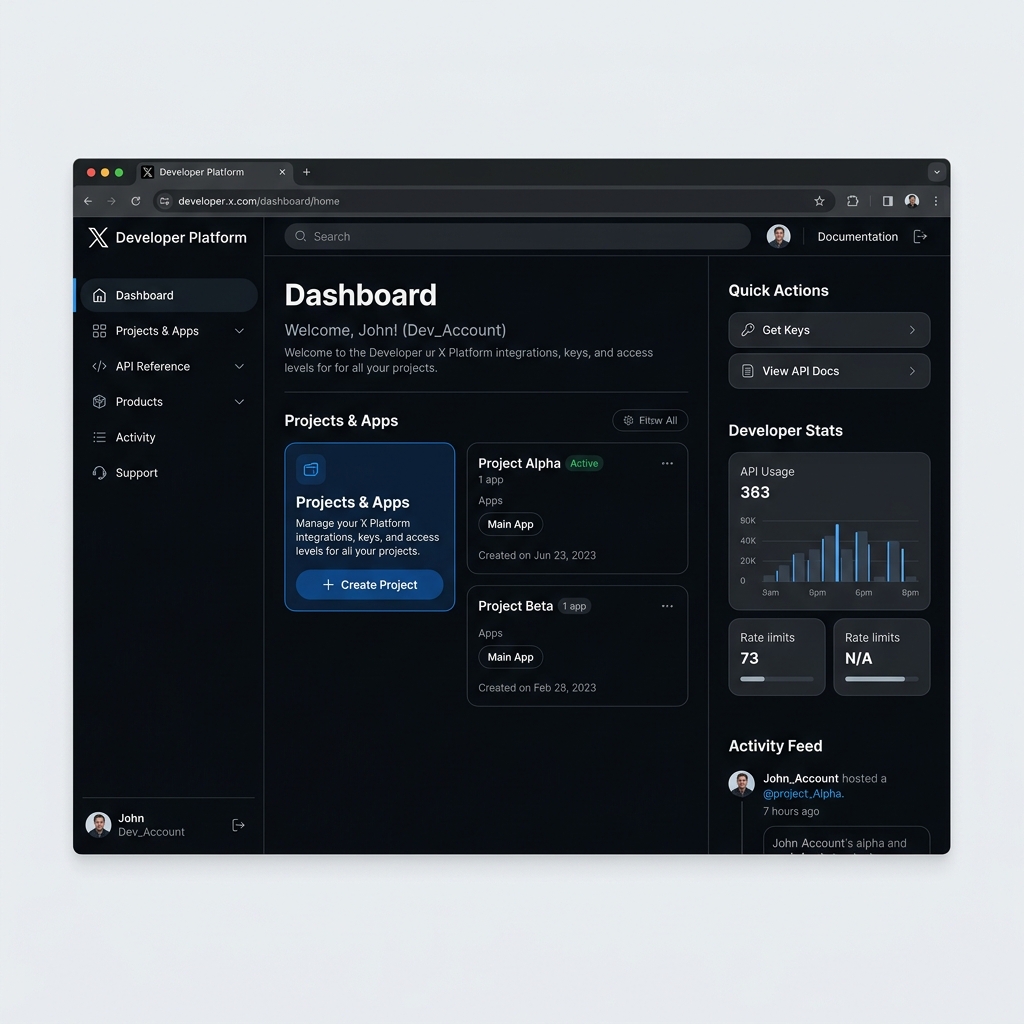
- Click Create Project on the dashboard. Give it a descriptive name (e.g., "Sofia Content") and select a use case like "Making a bot" or "Exploring the API".
- Once the project is created, click Add App (or "Create App") within that project.
Step 2: Enable User Authentication (OAuth 2.0)
Sofia Creative uses OAuth 2.0 for secure, temporary access to your account. You must explicitly enable this in your app settings.
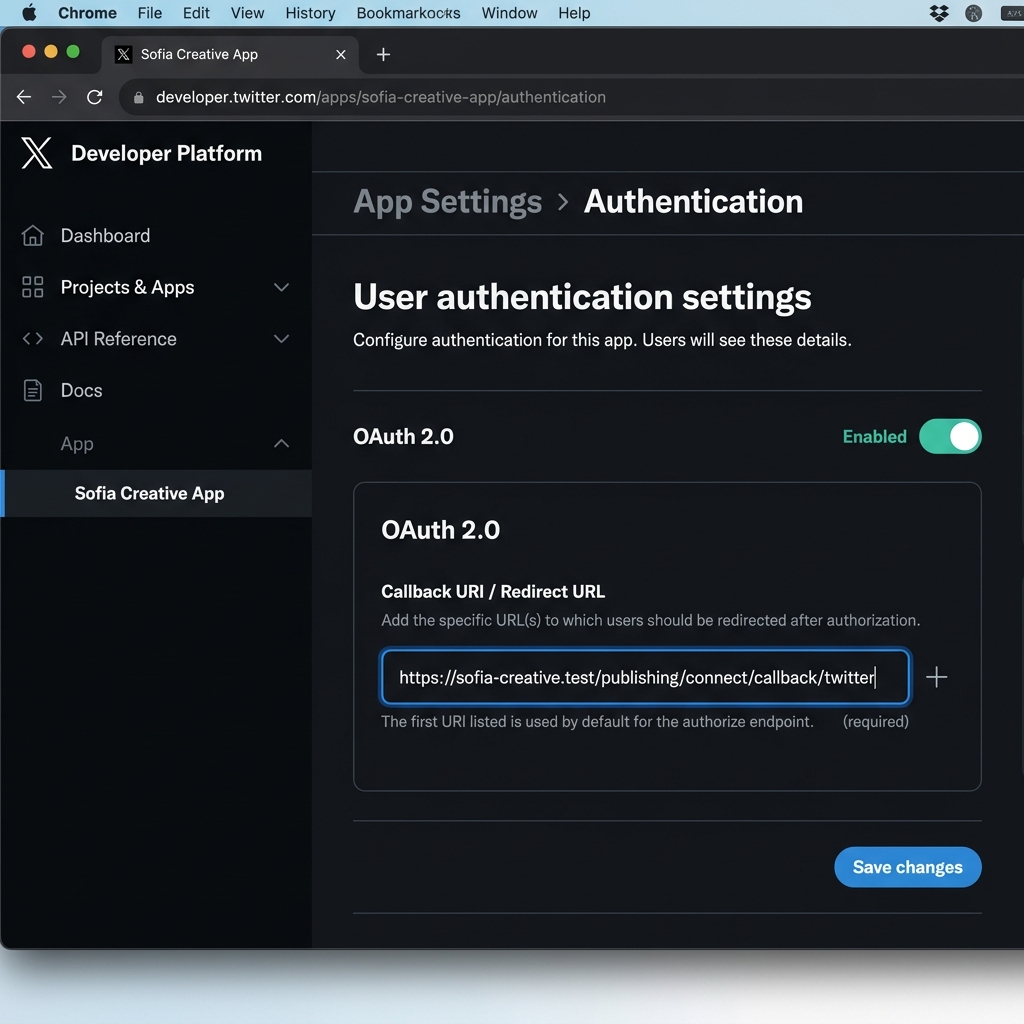
- In your app dashboard, scroll down to the User authentication settings section and click Set up.
- Toggle on OAuth 2.0.
- Under "Type of App," select Web App, Automated App or Bot.
- Set the App permissions to Read and write to allow Sofia Creative to post on your behalf.
Step 3: Configure Redirect / Callback URL
The Callback URL is the specific address where X sends the user back after they authorize your app. This must match your site's domain exactly.
- Locate the Callback URI / Redirect URL field in the authentication settings.
- Enter your unique callback URL:
https://your-domain.com/publishing/connect/callback/twitter
- Enter your Website URL in the field below.
- Click Save at the bottom of the page.
Step 4: Retrieve Client ID and Client Secret
Upon saving your authentication settings (or by navigating to the Keys and Tokens tab), X will provide your Client ID and Client Secret.
- Copy the Client ID. This is your public identifier.
- Copy the Client Secret. Important: This secret is only shown once. If you lose it, you will need to regenerate it.

Step 5: Connect in Sofia Creative
Return to Sofia Creative to finalize the link between the two platforms.
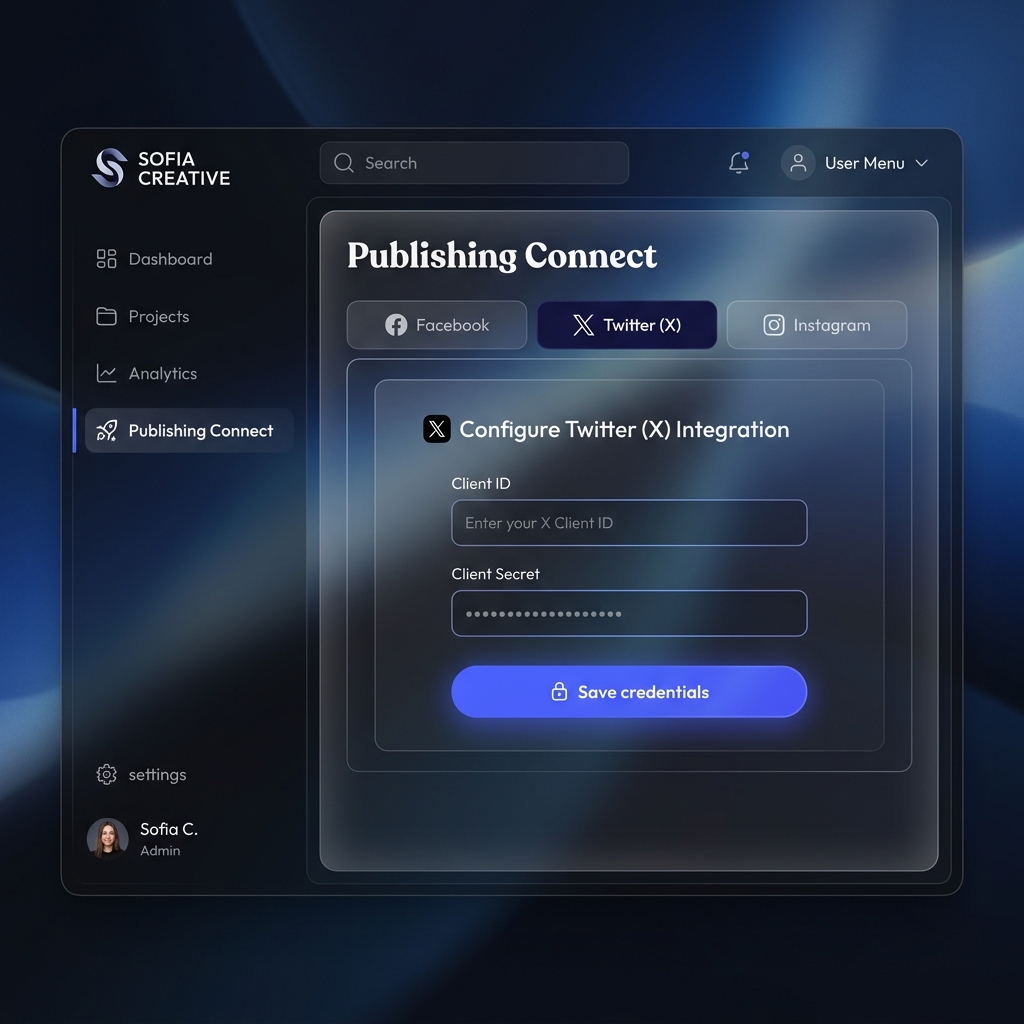
- Navigate to Publishing → Connect Accounts and select the Twitter tab.
- Paste the Client ID and Client Secret into the respective fields.
- Click Save credentials then click the Connect button.
- Follow the X authorization prompt to grant Sofia Creative access to your account.
Troubleshooting
- "Client Not Found" / "Unauthorized": Double-check that your Client ID and Secret match exactly what is in the X Developer Portal. Ensure you are copying the OAuth 2.0 credentials, not the API Keys for OAuth 1.0a.
- Callback URL Error: Ensure the URL in X matches your site's actual URL (including
https://). Any discrepancy will block the connection. - Write Permission Hidden: If you don't see the "Read and write" option, make sure you have selected "Web App, Automated App or Bot" as the app type.