Connect LinkedIn: Step-by-Step Guide
S
Sofia

Connecting LinkedIn to Sofia Creative allows your team to publish professional updates and articles directly to your Company Page or personal profile. This connection requires a LinkedIn Developer App with specific products enabled to handle the "Share on LinkedIn" permissions.
LinkedIn Company Page Required
To create a Developer App, LinkedIn requires you to link it to a Company Page. If you do not have one, you can create a placeholder page for your business.
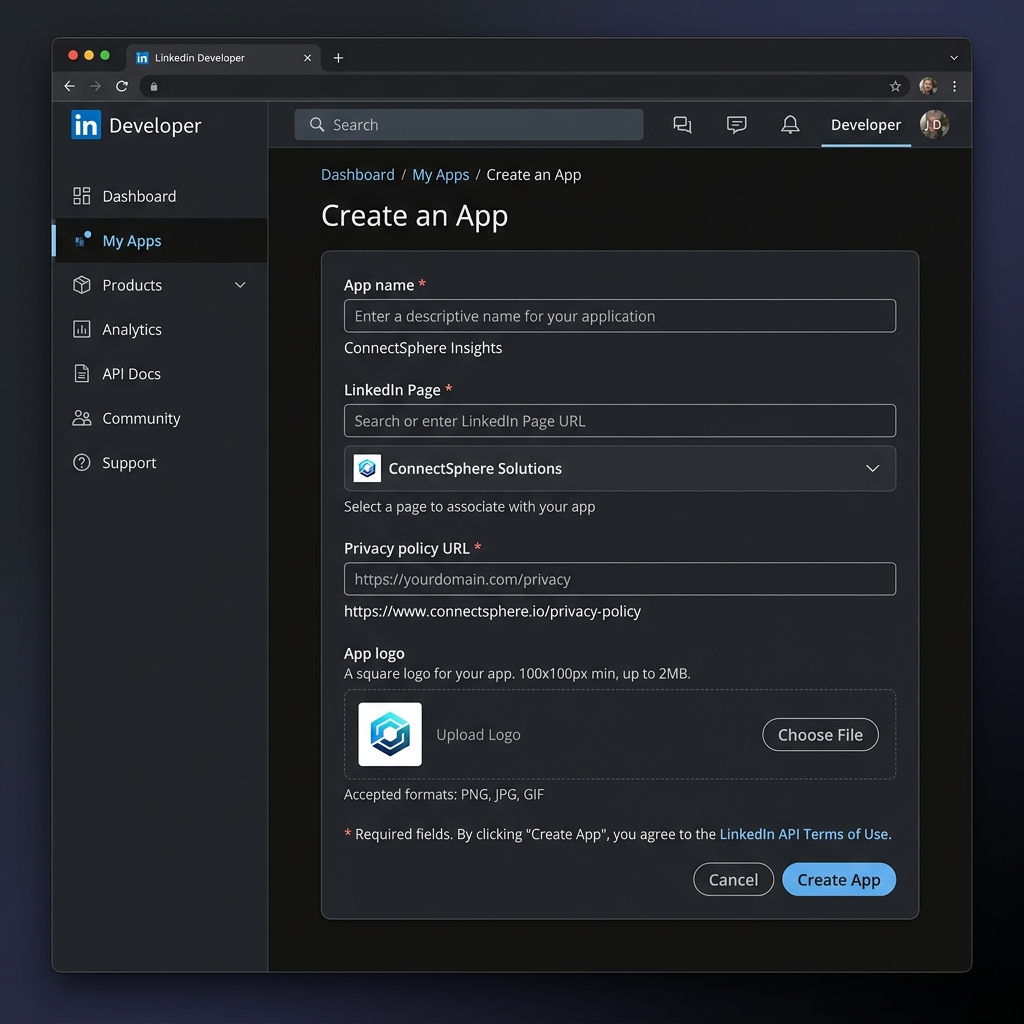
Step 1: Create a LinkedIn Developer App
- Go to the LinkedIn Developer Portal and sign in.
- Click Create app.
- Fill in the App name and select your LinkedIn Page.
- Upload an App logo and provide a valid Privacy policy URL.
- Verify your app by clicking the link sent to your Company Page admin's notification center.
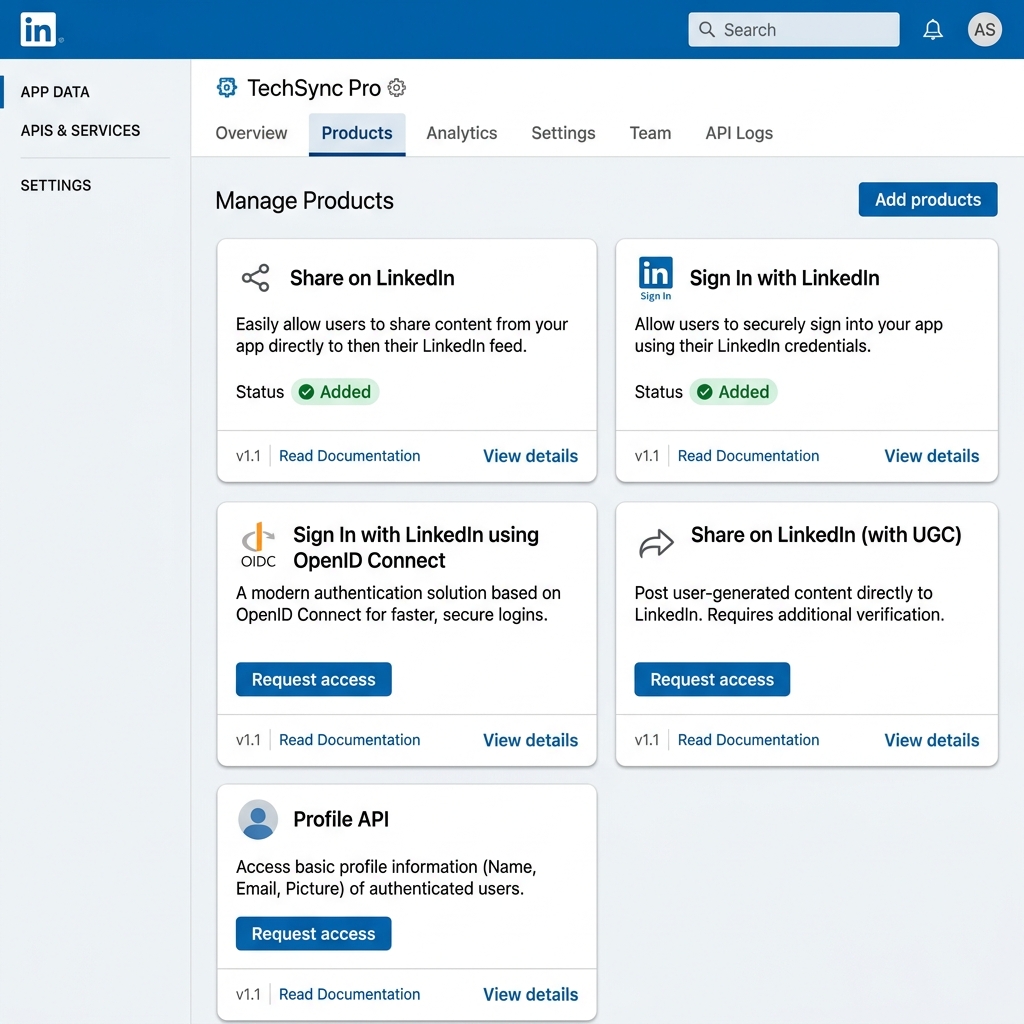
Step 2: Add Required Products
In the Products tab, you must request access to the following to enable posting:
- Share on LinkedIn: Grants the
w_member_socialscope needed for feed posts. - Sign In with LinkedIn using OpenID Connect: Required for the initial user authentication flow.
Step 3: Configure Auth Settings
Navigate to the Auth tab to get your credentials and set the security parameters.
- Copy your Client ID and Client Secret (Primary Secret).
- Under OAuth 2.0 settings, add your Redirect URI:
https://your-domain.com/publishing/connect/callback/linkedin
- Ensure the URI matches your site domain and protocol (HTTPS) exactly.
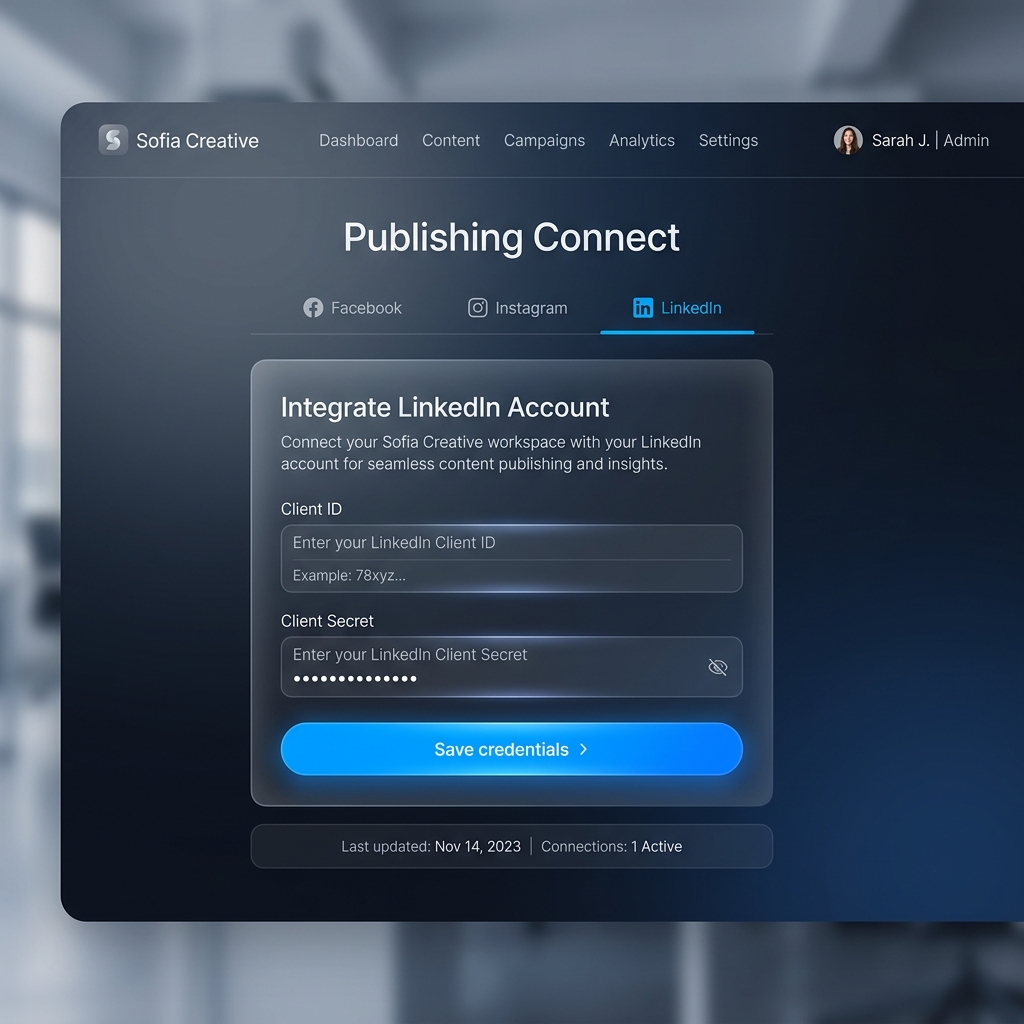
Step 4: Connect in Sofia Creative
Finalize the setup in your workspace.
- Go to Publishing → Connect Accounts and open the LinkedIn tab.
- Paste the Client ID and Client Secret.
- Click Save credentials, then Connect.
- In the LinkedIn popup, sign in and grant the requested permissions.
Troubleshooting
- Permission Missing: If you cannot post, check if the "Share on LinkedIn" product is still "Pending". Access is usually granted within a few minutes but can take longer.
- Verification Required: LinkedIn frequently requires apps to be "Verified" via a Company Page link. Ensure you have completed the verification step in Step 1.
- Invalid Redirect URI: Double-check for trailing slashes or
httpvshttpsmismatches in the LinkedIn Auth tab.