Connect Instagram: Step-by-Step Guide
Connecting your Instagram account with Sofia Creative allows you to publish feed posts, Reels, and carousels directly from your workspace. Because Instagram is owned by Meta, the connection process is closely tied to your Facebook App and Facebook Page. You will use the same App ID and App Secret as your Facebook setup.
Instagram Professional Account Required
The Instagram API only supports Business or Creator accounts. Personal accounts cannot be used. You must also link your Instagram account to a Facebook Page that you manage.
Step 1: Link Instagram to a Facebook Page
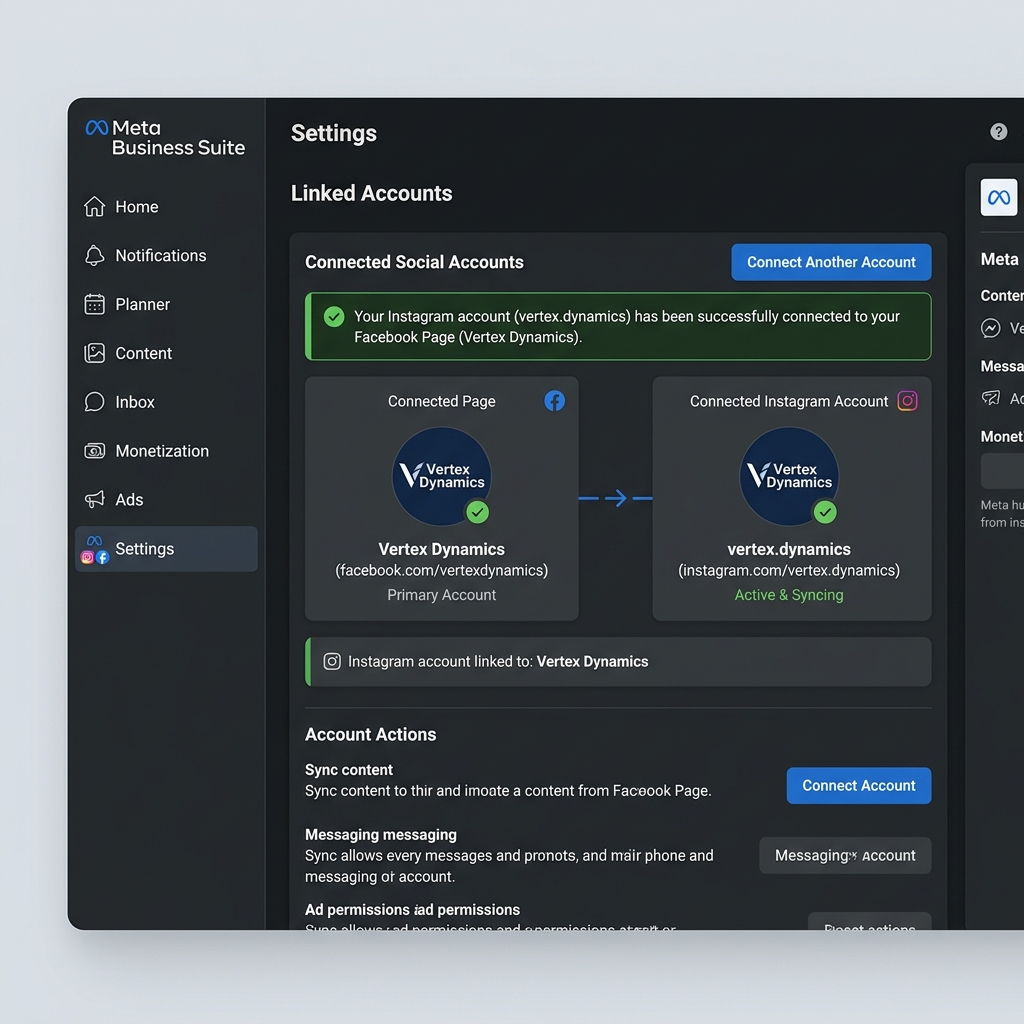
Before using the API, your Instagram account must be linked to a Facebook Page via Meta Business Suite.
- Go to Meta Business Suite and select your Business Account.
- Navigate to Settings → Business Assets → Instagram Accounts.
- Click Add Assets and log in to your Instagram account to link it to your Facebook Page.
Step 2: Add Instagram to Your Meta App
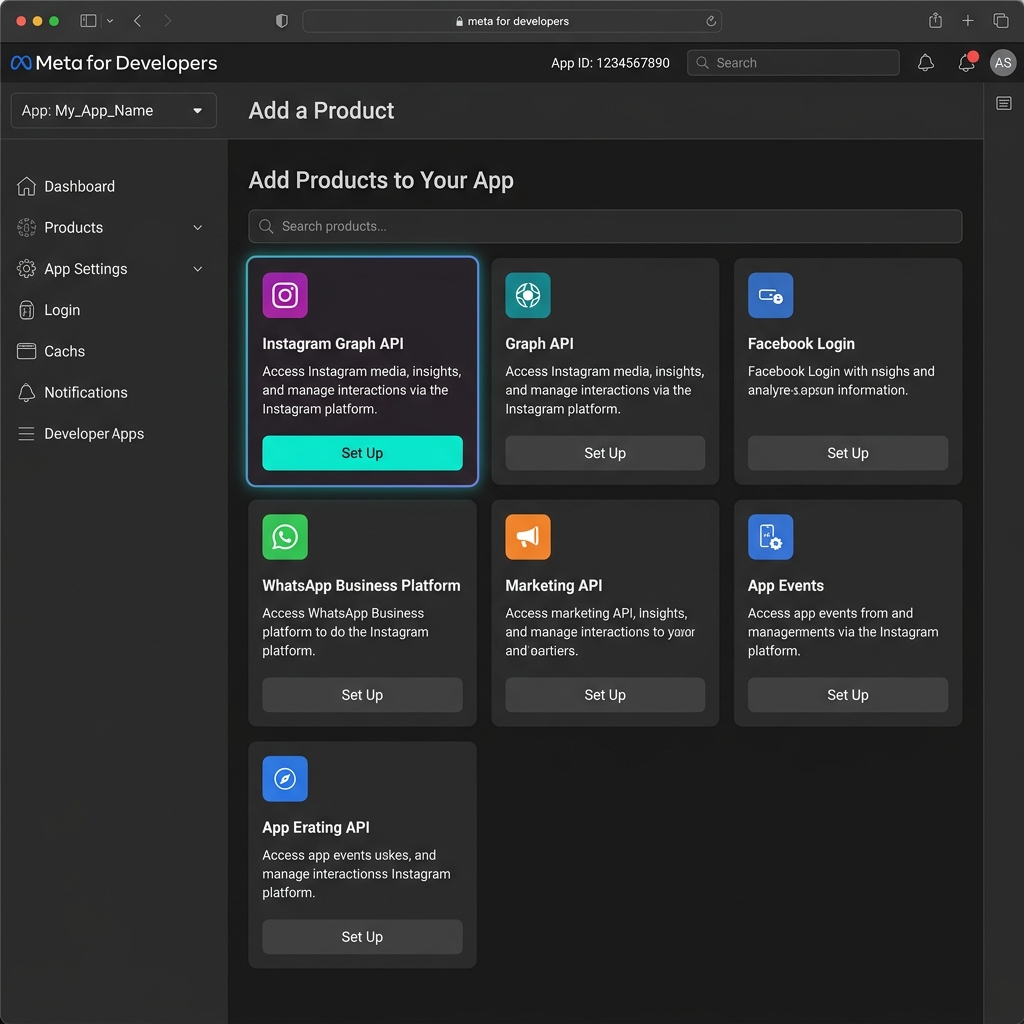
You must add the "Instagram Graph API" product to the Meta App you created for Facebook.
- Open your app in the Meta Developer Console.
- In the left sidebar, click Add Product.
- Find Instagram Graph API and click Set Up. This enables the necessary endpoints for media publishing.
Step 3: Verify Permissions & Scopes
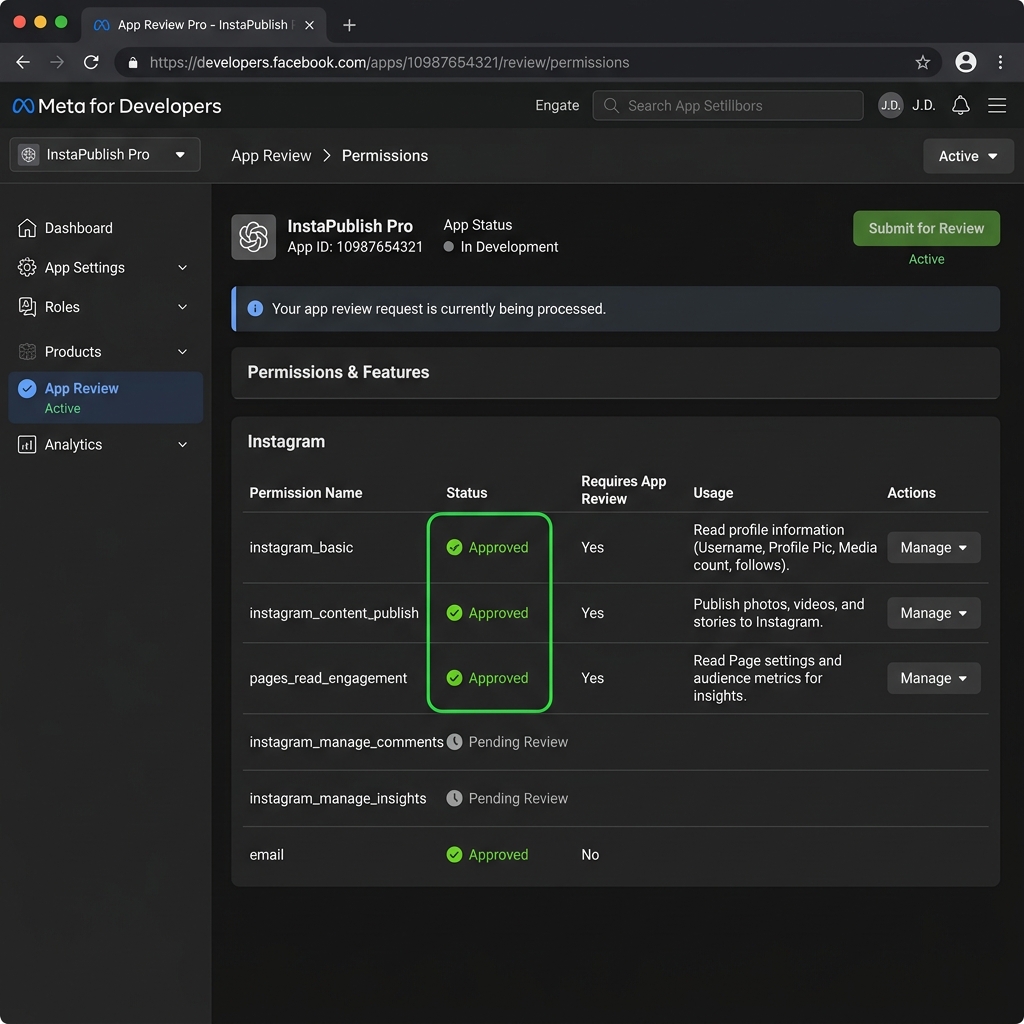
For Sofia Creative to post on your behalf, your app needs specific permissions. If your app is in "Development Mode," ensure you use a test user or your own admin account.
- Go to App Review → Permissions and Features.
- Ensure you have requested:
instagram_basic,instagram_content_publish, andpages_read_engagement.
Step 4: Connect in Sofia Creative
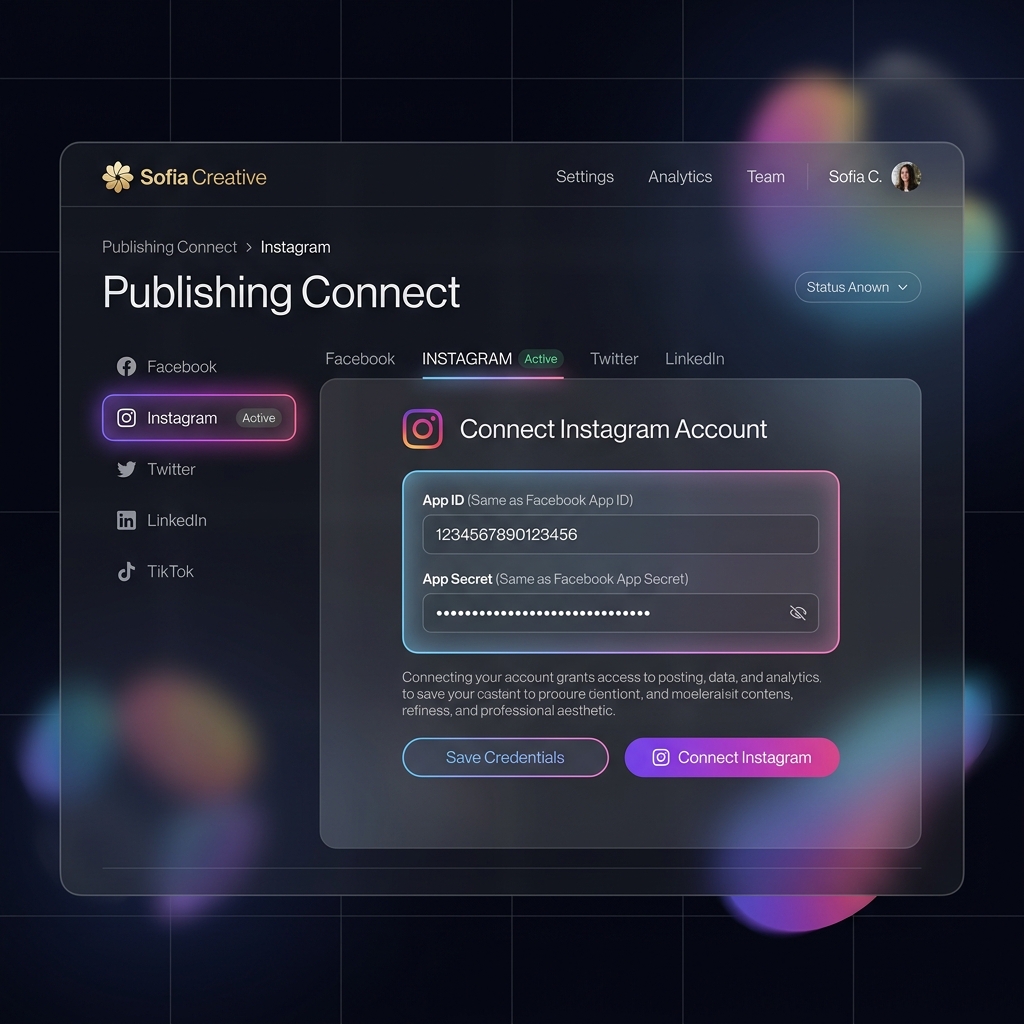
Finalize the connection in the Sofia Creative dashboard using the same credentials as Facebook.
- Navigate to Publishing → Connect Accounts → Instagram.
- Enter your App ID and App Secret (the same values used for Facebook).
- Click Save credentials then Connect.
- Follow the Facebook OAuth popup to authorize the specific Instagram account.
Common Pitfalls
- Account Type: If you receive an error saying "Unsupported account type," please check your Instagram app settings and ensure you have switched to a Professional (Business/Creator) account.
- Linked Page: The connection will fail if the Instagram account is not explicitly linked to a Facebook Page in Meta Business Suite.
- Rate Limits: Instagram limits automated publishing to 25 posts per 24-hour period. If you reach this limit, you must wait before posting again.