Connect Social Accounts: Overview

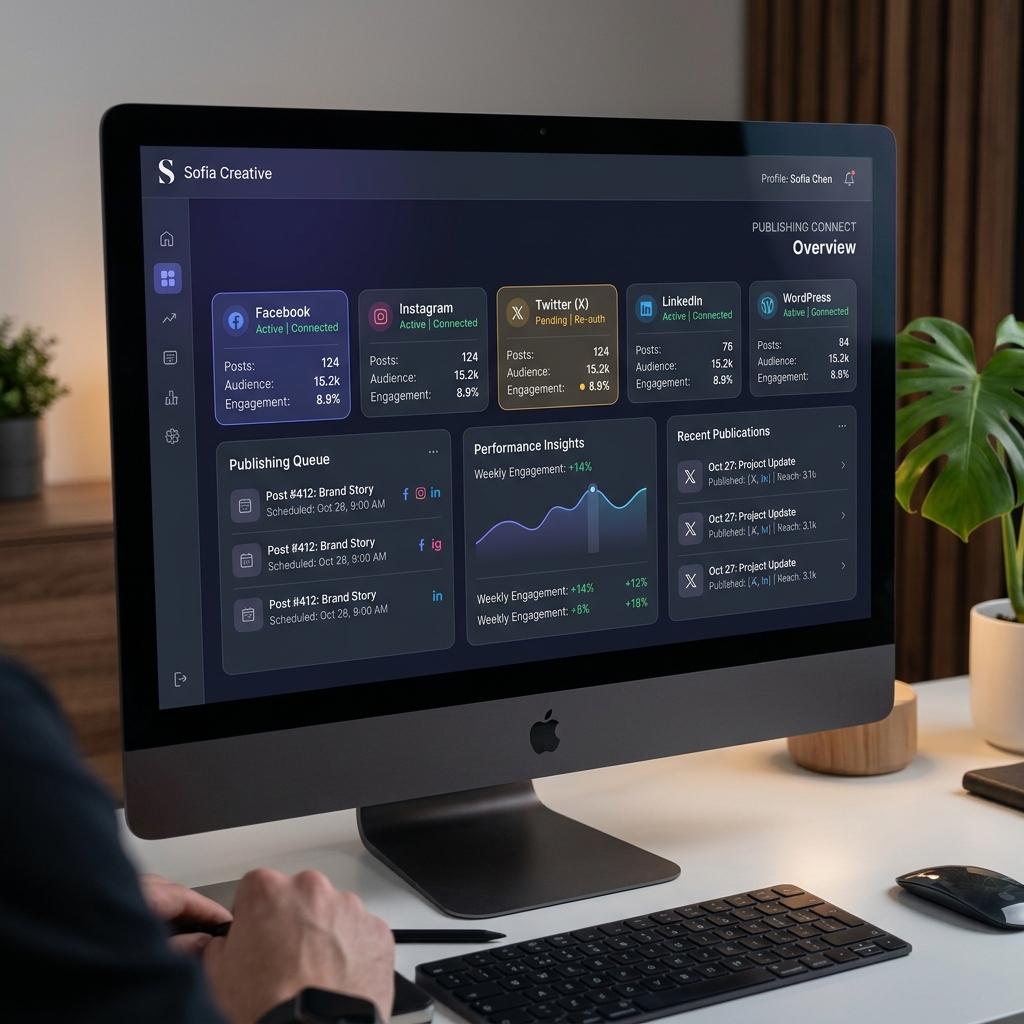
Sofia Creative centralizes your social media presence by allowing you to publish content to Facebook, Instagram, Twitter/X, LinkedIn, and WordPress through a single, streamlined process. Once connected, you can reach all your audiences with one click immediately after your content is approved.
Social Media (OAuth)
Platforms like Facebook, Instagram, X, and LinkedIn use secure OAuth 2.0. You provide Sofia Creative with app credentials (ID & Secret), and users click "Connect" to authorize access.
WordPress (App Passwords)
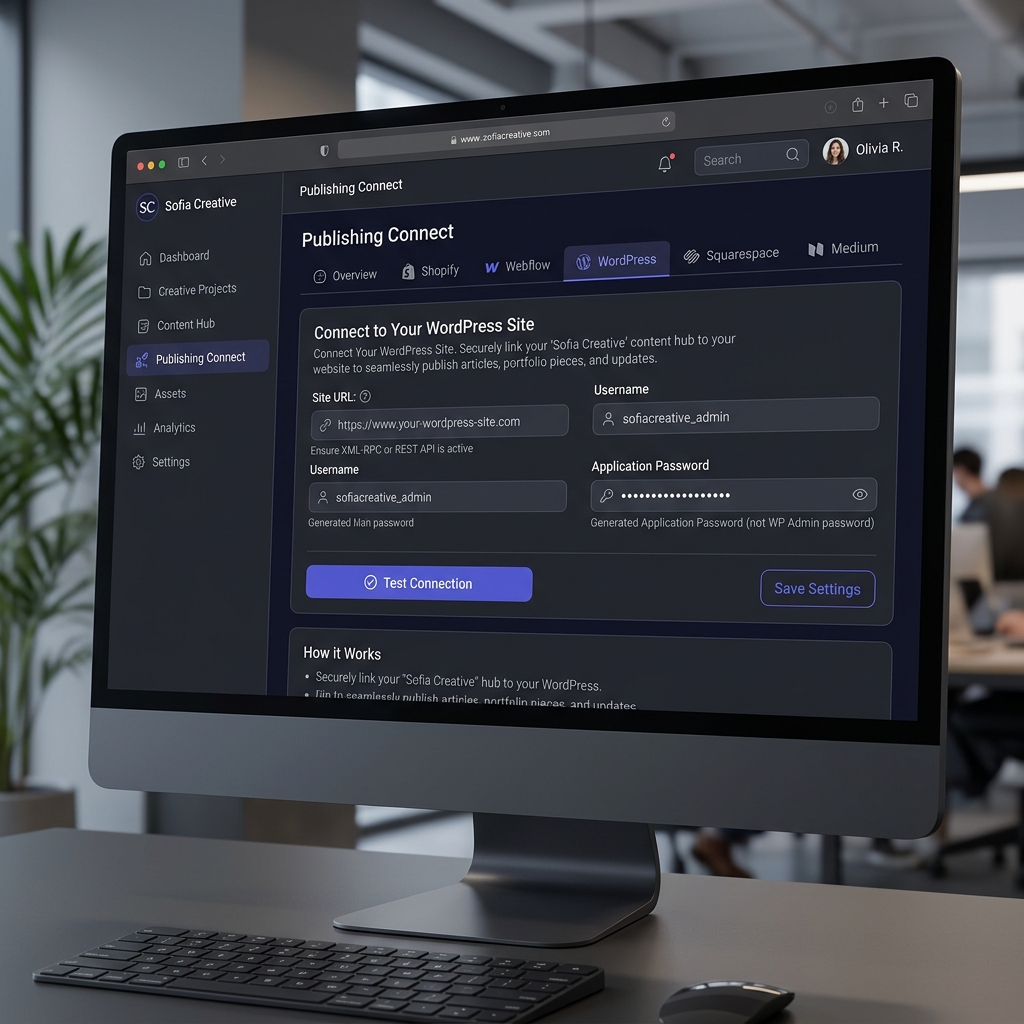
WordPress connection is direct. You generate an "Application Password" in your WordPress profile and enter it along with your site URL and username.
Where to Find Connection Settings
All publishing platform settings are located in the main Publishing module. Follow these navigation steps:
- Open the Publishing page from the sidebar.
- Click the Connect Accounts button at the top header.
- Use the tabs to switch between different platforms.
Step-by-Step Platform Guides
Because each platform has its own developer portal and unique configuration requirements, we have prepared detailed guides for each:
- Facebook Guide — App Creation & Page linking
- Instagram Guide — Requires Business or Creator account
- Twitter (X) Guide — OAuth 2.0 configuration on X Console
- LinkedIn Guide — Developer App & Member Social permissions
The Connection Flow: Admin & User Role
Sofia Creative separates the technical setup from the user authorization to ensure a smooth team experience:
- Administrator Setup: An admin team member obtains the Client ID and Client Secret from the platform's developer portal and saves them in the platform's tab using the Save credentials button.
- User Authorization: Once credentials are saved, any user with permission can click the Connect button. This triggers the platform's login popup to authorize specific accounts for publishing.
Connecting WordPress
WordPress does not use the standard OAuth flow. Instead, you'll use "Application Passwords":
- Log in to your WordPress site and go to Users → Profile.
- Scroll down to Application Passwords, give it a name (e.g., "Sofia"), and copy the generated password.
- Back in Sofia Creative, enter your Site URL, Username, and the Application Password.
- Use Test connection to verify before saving.
Managing Connections
Once a platform is connected, its status will change to "Connected" with the account name displayed. You can Disconnect or Reconnect at any time. Reconnecting is often necessary if you change your platform password or if the authorization token expires.